Table of Contents #
Block Editor – Components #
Block Editor #
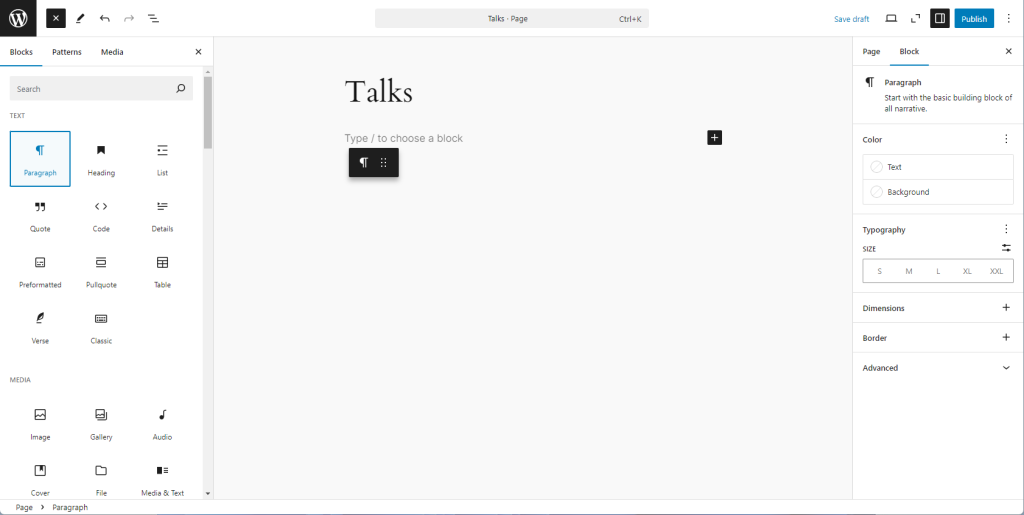
The Block Editor is used to create, edit, and format content for WordPress pages and posts.
Refer:
Block Inserter #

The Block Inserter allows users to easily add various types of content blocks to their posts and pages.
Refer:
Quick Inserter #
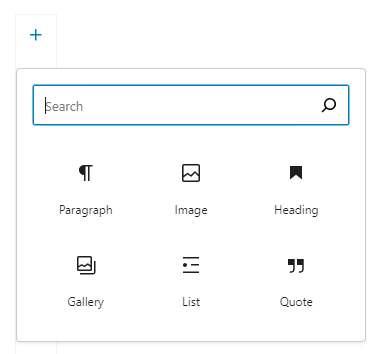
The Quick Inserter, which can be accessed by clicking on the plus sign (+) icon in the editor interface, provides a convenient way to insert blocks.
The Quick Inserter ..
Refer:
Block Toolbar #
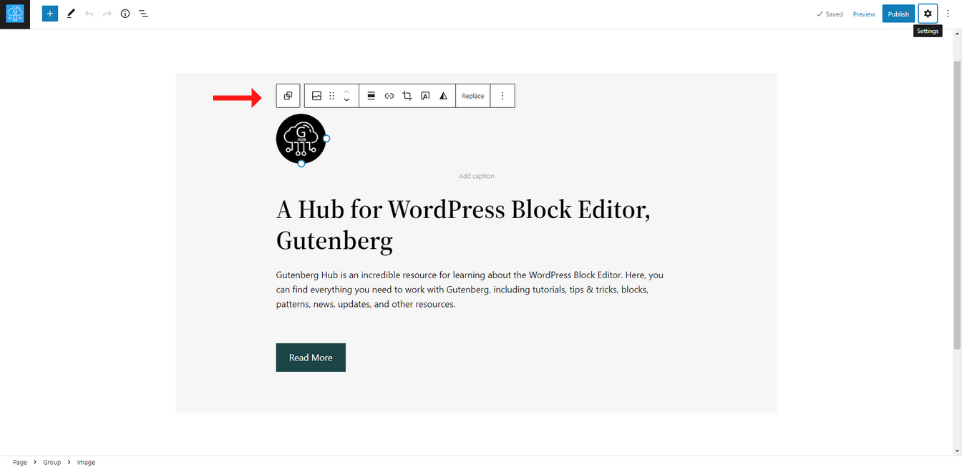
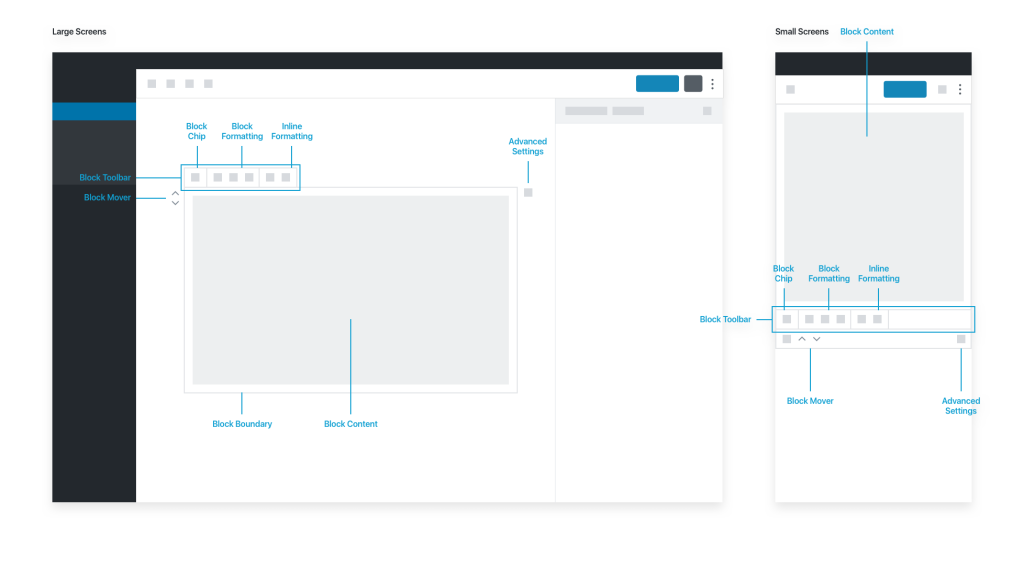
The Block Toolbar appears above each selected block in the editor. It allows users to make adjustments to the selected block, and to move, duplicate, or delete the block.
Refer:
Settings Sidebar #

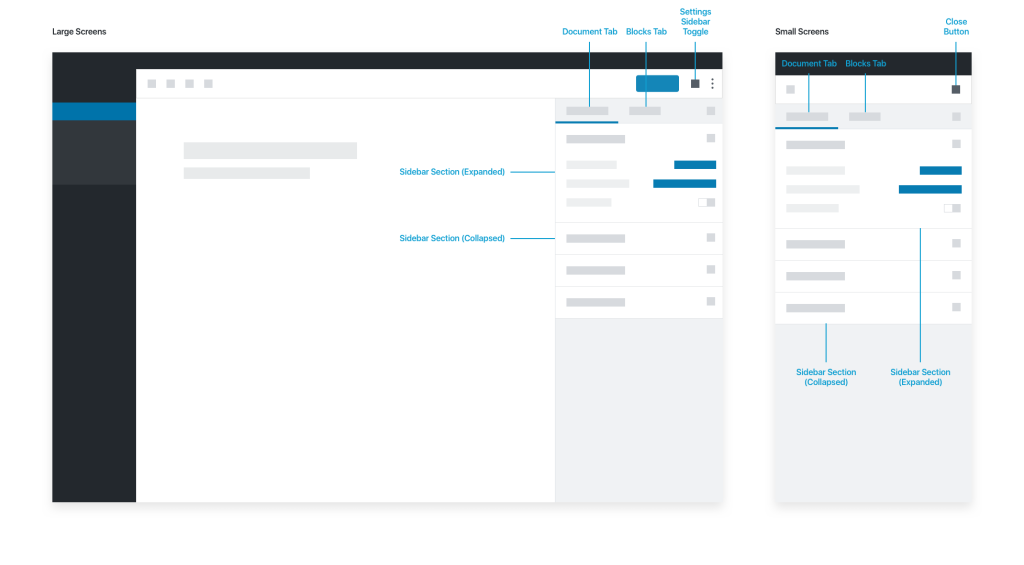
The Settings Sidebar is available by selecting the gear icon in the upper-right corner of the WordPress Editor. Users can adjust various settings for your post or page, controlling the overall configuration of content within the editor.
Refer:
Block Styles #

Block Styles in WordPress are a feature that enables users to quickly and easily enhance the appearance of individual blocks within the WordPress block editor. The available options vary depending on the theme and the block type.
Refer:
Global Styles #
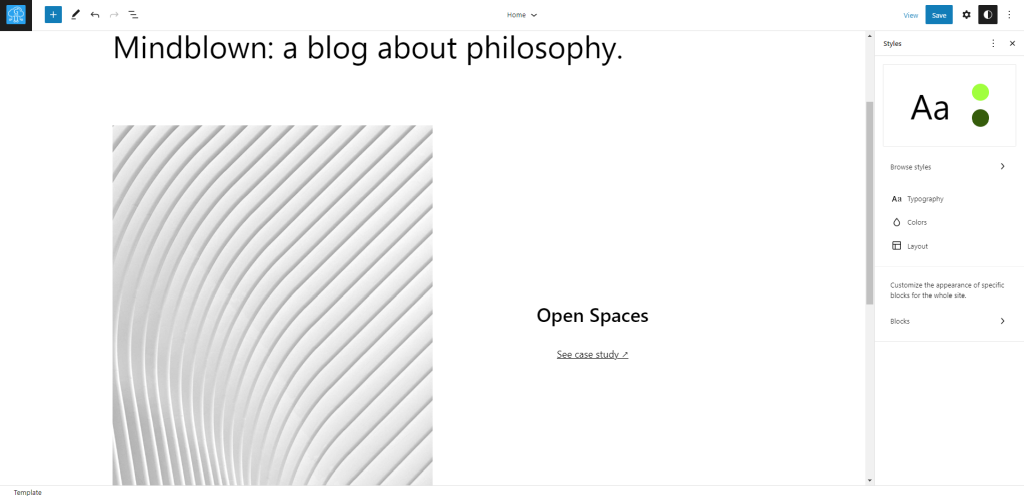
Global Styles in WordPress is a feature that allows users to change the styleStyle When you select a CF7 Skins Style the aesthetic design (CSS code) is automatically created and applied to your form. of their entire website without having to edit individual pages or blocks
These styles can be managed in the site editor & can include font styles, background colors, spacing options, and other design elements that can create a consistent design across the website.
Refer:
- Everything You Need to Know About WordPress Global Styles
- Getting Started with Global Styles in WordPress[Video]
Block Tools #
The Block Tools allows users to ..
Refer:
Block Transform #
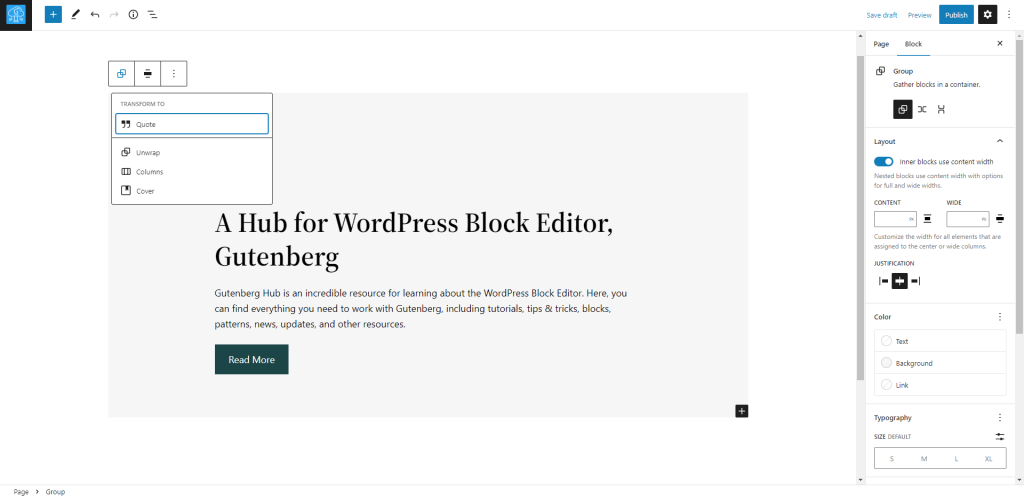
The Block Transform feature allows users to transform a block into a different type of block. Clicking on the block icon in the top left of the block control bar, offers a list of available possibilities for transforming the current block.
Refer:
- How to Transform a Block in WordPress
- What is Block Transform Feature in WordPress Block Editor[Video]
Block List View #
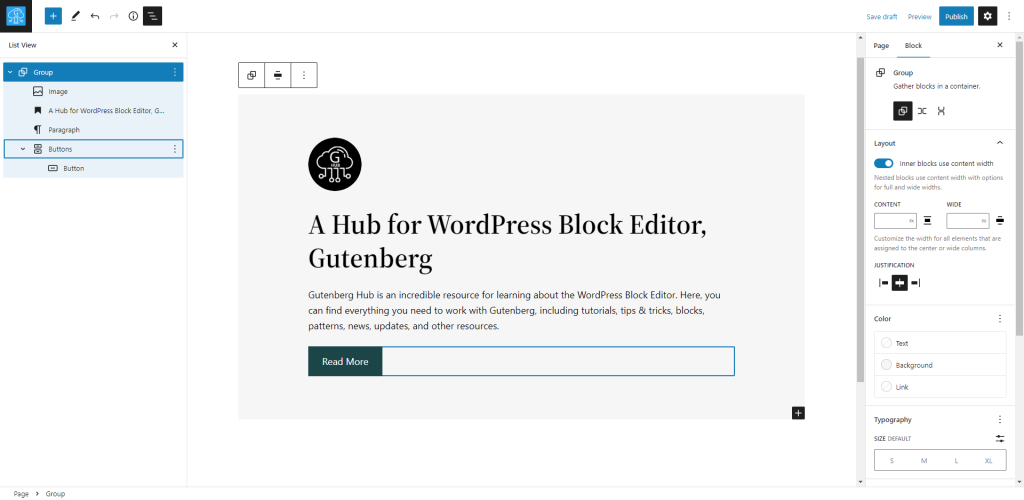
The Block List View displays a page’s blocks in a tree-like structure. This helps users navigate and organize blocks, especially when a page has many nested blocks.
Refer:
- WordPress Gutenberg: How to Use the Block List View
- Understanding List View in the WordPress Editor [Video]
Block Bread Crumbs #

The Block Bread Crumbs allows users to ..
Refer:
Refer:
- List of Common WordPress Block Editor Terms – WP Glossary
- Block Editor Handbook – Glossary
- Block Editor Handbook – User Interface
- WordPress Glossary – Block
Block Editor – Main Sections #
Block Editor – Overall #

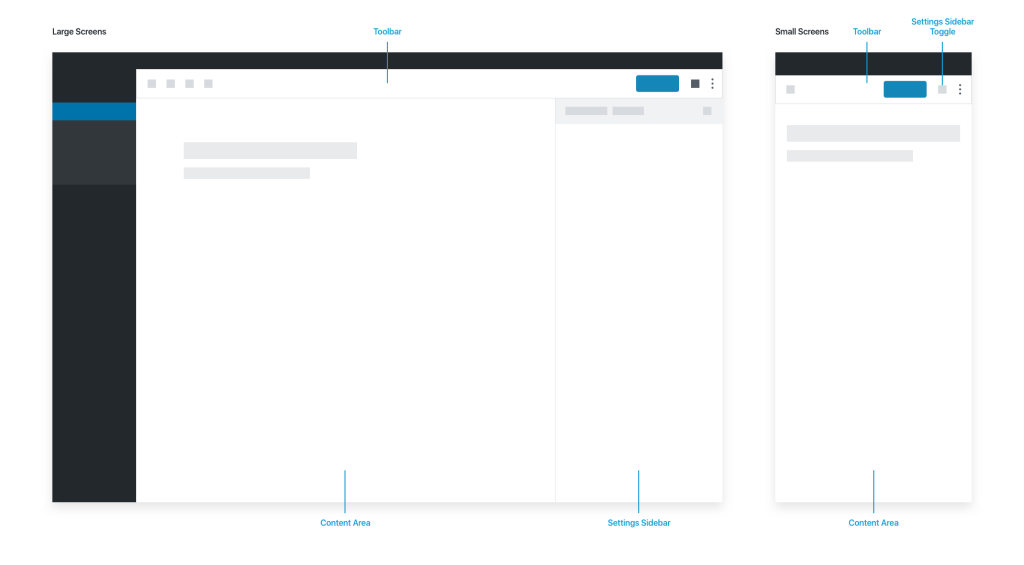
Block Inserter/Library #

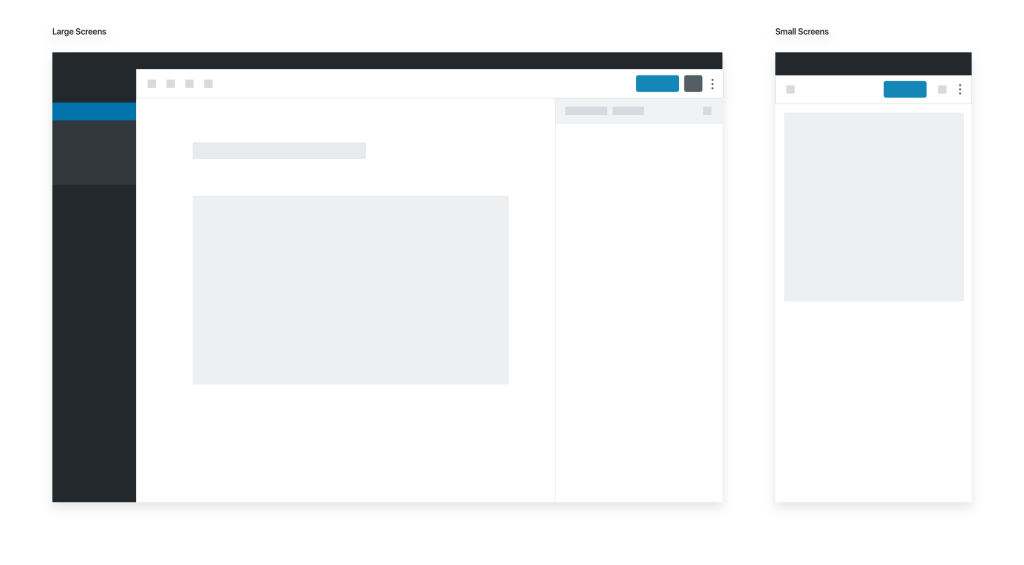
Content Area #
Block Tools #
Settings Sidebar #