CF7 Skins Logic is now available in the CF7 Skins Visual Editor. Thanks to all CF7 Skins users who helped us by purchasing the add-on.

CF7 Skins Logic in the Visual Editor
Previously, you could only use the Logic tab in the Contact Form 7 area to add conditional logic to your forms.

Using this method to add logic was less intuitive and wasn’t easy to use for less tech-savvy users. The new version of CF7 Skins provides a more interactive, intuitive, and easy-to-use Logic tab directly in the Visual Editor.
Tip: With the addition of the new Logic tab, you can now use all the features provided by CF7 Skins directly from the Visual Editor.
Advantages of CF7 Skins Logic in the Visual Editor
Using CF7 Skins Logic in the Visual Editor offers the following advantages:
1. More interactive and easy to use Logic tab.
2. The drag-and-drop feature makes creating dynamic forms more intuitive.
3. Logic Data makes it easy to replicate conditional logic in forms across multiple websites.
4. Improved aesthetic value with a better-looking UI.
5. A new and improved underlying technology with the upgrade from jQuery to React.

How CF7 Skins Logic in the Visual Editor works
After creating a form, follow these steps to add conditional logic using the Visual Editor:
1. Go to the Logic tab.

2. Drag a field that you want to hide based on a condition.
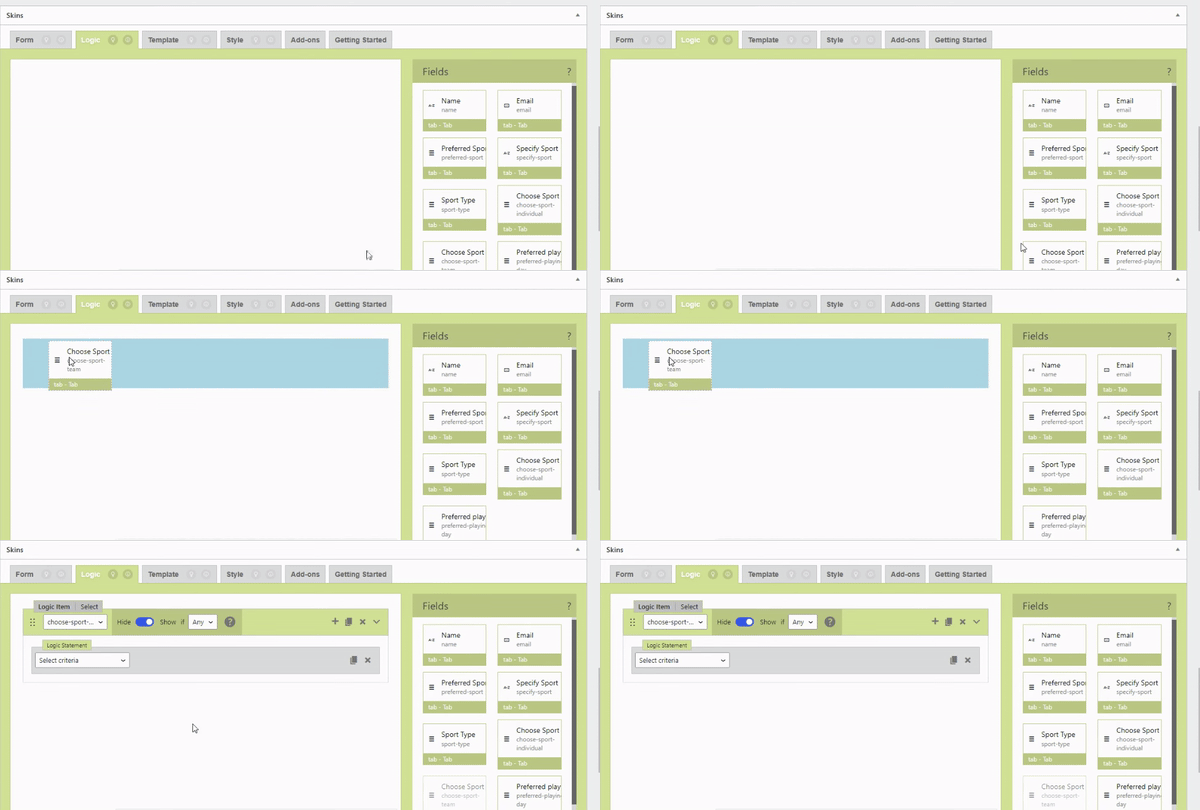
3. Select Show or Hide based on your condition.

4. Choose Any or All.

5. Build a logic statement using the provided options.

Tip: You can build as many logical statements as you want.

6. Follow steps 3, 4, and 5 to add Logic Items for as many form fields as you desire.
7. After finalizing all the logic items, click Save Logic.
Tip: Click here for a quick introduction and pricing information for CF7 Skins Logic.
The new Logic tab for CF7 Skins Visual Editor provides a more interactive, intuitive, and aesthetically appealing method for adding conditional logic to your CF7 forms. Additionally, it helps you easily replicate the same conditional logic across forms in many websites.

Provides a complete solution for your Contact Form 7 forms
Further reading